
Facebook Ads Manager (Facebook Ads Manager) is the official unified dashboard provided by Meta to create, manage, and track all your advertising campaigns across Facebook and Instagram from one place. If you run a business page or work in digital marketing, this tool is the real starting point for any professional ad campaign aiming for actual results rather than just temporary likes and fleeting views.
Ads Manager is the foundation of any marketing strategy that relies on Meta platforms because it grants you full control over budget, targeting, and reports, which is not available through any other method of boosting a post directly from your page.
What is Facebook Ads Manager (Meta Ads Manager)?
Ads Manager is a unified management platform owned by Meta, allowing business owners and marketers to create paid advertising campaigns on Facebook, Instagram, and even the Audience Network, with full control over every single detail: from choosing the campaign objective to defining the audience, setting the budget, and tracking performance minute by minute.
Companies and marketers use it because it provides highly accurate targeting options, the ability to test multiple ads simultaneously, and detailed reports that help make data-driven decisions rather than relying on guesswork.
The core difference between it and creating an ad directly from a Facebook page is that the latter gives you very limited options for targeting, budgeting, and reporting. Meanwhile, Facebook Ads Manager gives you complete control over every element of the campaign, making it the only suitable choice for any serious marketing campaign.
What is the difference between Facebook Ads Manager and other ad platforms?

Facebook Ads Manager stands out from platforms like Google Ads or TikTok Ads Manager due to its massive database regarding user interests and behaviors. This enables highly precise targeting based on age, interests, purchasing behavior, and previous interaction. It also offers the Lookalike Audience feature, which allows you to reach new people who behave similarly to your current customers—a powerful feature not available with the same efficiency on all competing platforms. Another advantage is the seamless integration of Facebook and Instagram within the same dashboard, saving significant time and effort compared to managing each platform separately.
What is the difference between Facebook Ads Manager and the Boost Post feature?
Many page owners confuse using Facebook Ads Manager with clicking the “Boost Post” button directly from the page. The difference between them is massive, even though both result in a paid advertisement. The following table highlights the key differences:
| Criterion | Facebook Ads Manager | Boost Post |
|---|---|---|
| Control Level | Full control over every single element in the campaign | Very limited control |
| Targeting Options | Advanced and multi-layered targeting | Basic targeting only |
| Budgeting | Flexible (Daily or Lifetime) with smart distribution | Setting a simple total amount |
| Campaign Objectives | Multiple professional objectives (Sales, leads, and Conversions) | General objectives (Engagement, Traffic) |
| Reporting | Detailed reports and precise metrics | Very simplified reports |
| A/B Testing | Fully available | Not available |
| Retargeting | Available via Custom Audience and Pixel | Not available |
| Best Use Case | Professional campaigns aimed at tangible results | Quick boost for a simple post |
Control Level:
Facebook Ads Manager grants you the authority to control every single step of the campaign, whereas Boost Post is restricted to pre-made, limited options that do not suit a real marketing strategy.
Targeting Options:
Inside Facebook Ads Manager, you can combine multiple targeting criteria at the same time. On the other hand, Boost Post only provides surface-level targeting based on age, location, and general interests.
Budgeting:
Facebook Ads Manager allows you to distribute the budget intelligently across multiple ad sets and test various scenarios, while Boost Post relies on a fixed amount allocated to a single post only.
Campaign Objectives:
Ads Manager provides tailored objectives such as conversions, sales, and lead generation, which are completely unavailable through the simple boosting feature.
Reporting:
With Facebook Ads Manager, you get detailed reports including the cost per result and conversion rates, while Boost Post reports settle for basic engagement numbers.
A/B Testing:
Facebook Ads Manager allows you to try more than one ad version to discover which one performs better, a feature that does not exist in Boost Post at all.
Retargeting (Remarketing):
Thanks to Meta Pixel, you can target those who have previously visited your website or interacted with your page, which is impossible through direct boosting.
Best Use Case for Each:
Boost Post is only suitable for quickly increasing engagement on a regular post, while Ads Manager is the correct choice for any real business objective like driving sales or collecting customer data.
What Do You Need Before Creating Your First Campaign Inside Facebook Ads Manager?
Before diving into campaign creation details, there are essential elements you must set up first to ensure smooth operations without the campaign stopping later on.

Create a Business Portfolio:
This is the central hub that groups all your advertising assets (pages, ad accounts, and pixels) under one umbrella. It must be created under your business name, not a personal name.
Create an Ad Account:
The ad account is where all campaigns and budgets are managed. It is highly recommended to own your own account rather than using a third-party account.
Link a Facebook page:
You must link your business page to the ad account so that ads appear under its name, building engagement data and followers over time.
Link an Instagram Account:
Linking an Instagram account allows you to run the same ad across both platforms simultaneously without separate setups, which is necessary to expand your reach.
Add a Payment Method:
No campaign will run without adding a reliable payment method approved by Meta. It is preferred to use a card that supports international payments to avoid any rejection.
Install Meta Pixel:
The Pixel is a small piece of code placed on your website to track visitor behavior. It is the foundation for any precise retargeting or conversion measurement process.
Domain Verification (If you have a website):
Verifying domain ownership protects you from losing event data due to privacy updates, and it is highly recommended for any website owner.
Set Up Conversion Events:
Defining important events like purchases or registrations allows Ads Manager to optimize ad delivery to those who are most likely to actually take that action.
How to Create an Ad Campaign on Facebook Ads Manager Step by Step:
After preparing the basic infrastructure comes the stage of building the campaign itself through several sequential steps within Facebook Ads Manager:
Choosing the Campaign Objective:
- Awareness: Increase brand awareness.
- Traffic: Direct visitors to your website or page.
- Engagement: Increase interaction with content.
- Leads: Collect potential customer data.
- App Promotion: Promote an app and increase downloads.
- Sales: Generate direct sales through the store.
Defining the Audience:
- Saved Audience: An audience saved with fixed criteria such as age and interests to use across multiple campaigns.
- Custom Audience: An audience built on actual data, such as website visitors or a previous customer list.
- Lookalike Audience: A new audience that behaves behaviorally like your current customers, used to expand with greater confidence.
Choosing Ad Placements:
- Automatic Placement: Automatically distributes the ad to the best positions based on the performance of each placement.
- Manual Placement: Manual selection of specific positions, such as Facebook only or Instagram Stories only.
Setting the Budget:
- Daily Budget: A fixed amount spent daily, suitable for ongoing campaigns.
- Lifetime Budget: A total amount distributed automatically over the entire campaign duration, suitable for time-limited offers.
Creating the Ad (Ad Creative):
This part includes selecting clear, high-quality images or engaging short videos that capture attention within the first few seconds. It also involves writing compelling ad copy that directly addresses the audience’s problem, a short attention-grabbing headline, a description highlighting the benefits, and finally, a clear CTA button like “Shop Now” or “Learn More” to guide the user precisely to the next step.
How to Read Your Campaign Results Inside Facebook Ads Manager:
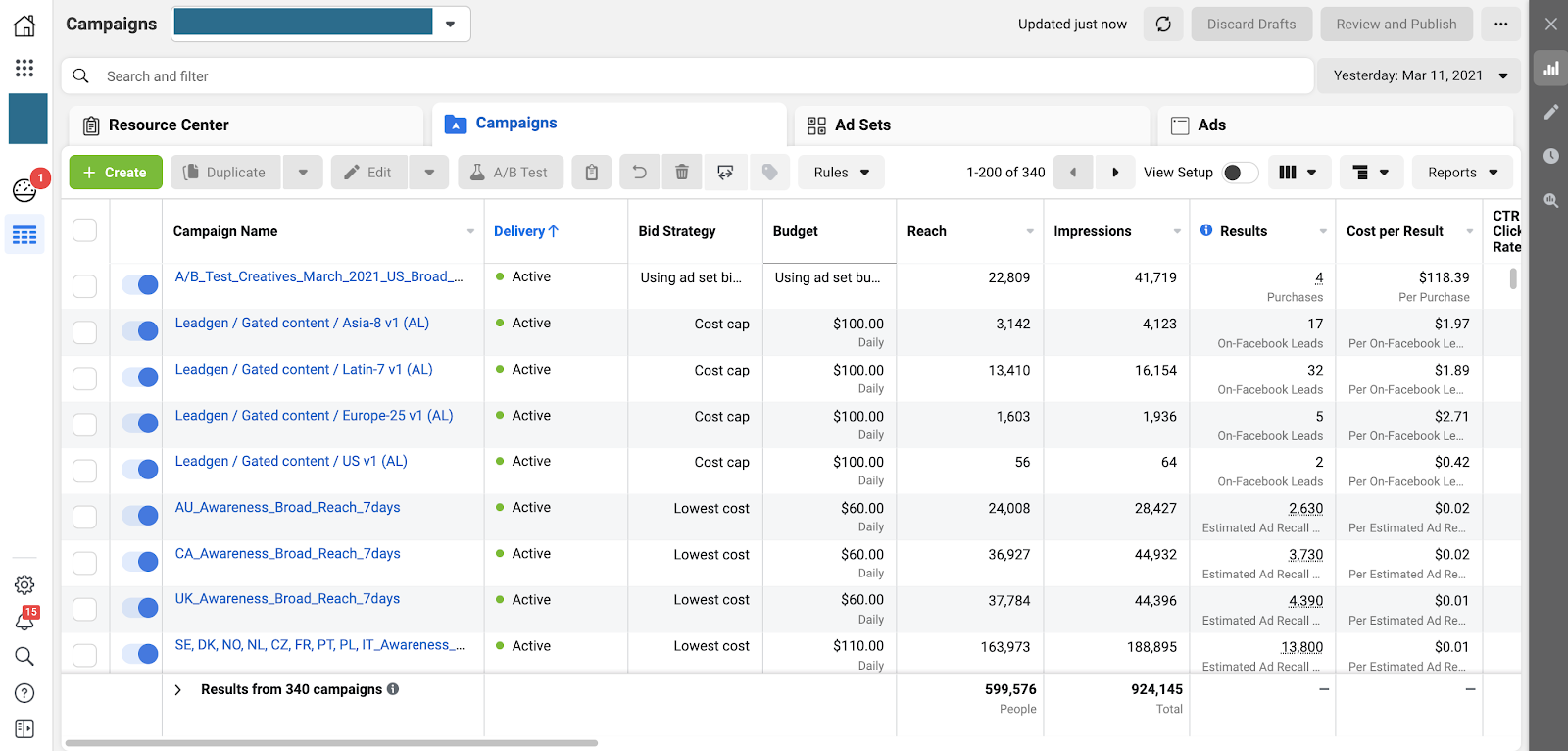
Understanding the numbers is what differentiates a successful campaign from one that drains the budget without results. These are the most important metrics displayed by Facebook Ads Manager:
- Reach: The number of unique people who actually saw your ad.
- Impressions: The total number of times the ad appeared, even if the same person saw it more than once.
- CTR (Click-Through Rate): The percentage of people who clicked the ad compared to the number of people who saw it, which indicates content attractiveness.
- CPC (Cost Per Click): The cost of each click on the ad, a direct measure of spending efficiency.
- CPM (Cost Per Mille): The cost per thousand impressions, used to measure overall reach cost.
- CPA (Cost Per Action/Acquisition): The cost to get a real result, such as a purchase or registration.
- ROAS (Return on Ad Spend): The return on advertising spend, which is the most critical metric for evaluating campaign profitability.
- Frequency: The average number of times the same person saw the ad. Excessively high frequency means the audience is fatigued by the ad.
Most Common Mistakes When Using Facebook Ads Manager
- Choosing an unsuitable objective: Such as choosing traffic when the actual goal is sales, which misdirects the algorithm.
- Ignoring the Pixel: Causes you to lose valuable data for future retargeting and performance optimization.
- Targeting too broadly or too narrowly: Both raise costs unnecessarily and reduce result quality.
- Constantly editing the campaign: Resets the learning algorithm from scratch and delays performance stabilization.
- Relying on a single ad only: Prevents you from knowing which version actually performs better.
- Not performing A/B testing: Makes decisions based on guesswork rather than actual data.
- Ignoring data analysis: Means repeating the same mistakes without continuous campaign improvement.
Solutions to the Most Common Facebook Ads Manager Problems:
While using Facebook Ads Manager, you may face some problems affecting campaign delivery or results. In most cases, these issues can be resolved by reviewing account settings and adhering to Meta policies. Here are the most famous ones:
Disabled Ad Account:
Usually happens due to violating Meta policies or detecting unusual activity on the account. The problem can be solved by reviewing the reason for the disabling from the Account Quality Center and submitting an appeal after addressing the cause of the violation.
Rejected Ad:
Mostly due to violating advertising policies, such as using misleading content or non-compliant images. Simply editing the violating element and resubmitting the ad for review is enough.
Ad Is Not Spending Budget
The reason could be narrow targeting, a low budget, or high competition for the target audience. Spending can be improved by reviewing campaign settings and expanding the audience when necessary.
Rejected Payment Method:
This problem occurs when there is an issue with the bank card or if it does not support international payments. Ensure the card’s validity or add an alternative payment method.
High Ad Cost:
Costs often rise due to poor ad quality or inaccurate targeting. Therefore, it is recommended to improve ad content and test different audiences to achieve better results.
Low Reach:
Can result from a low budget or a limited target audience. Reach can be increased by optimizing targeting or gradually raising the budget.
Account Under Review:
Meta places some accounts under review to verify compliance with its policies, which is a normal procedure in many cases. All you have to do is wait for the review to finish while ensuring account details are complete and no violations exist.
If You Are Dealing with a Marketing Agency, How Do You Protect Your Ad Account?
When hiring an external marketing agency, it is vital to protect your digital assets so you do not lose your data or campaigns when the collaboration ends.
- Create a business portfolio in your company’s name, not the marketing agency’s name.
- Own your ad account completely independently from the service provider.
- Grant the marketing agency Partner Access only, without transferring full ownership.
- Retain full admin privileges for yourself at all times.
- Ensure that Meta Pixel and Conversion API are owned by your company, not the service provider.
- Review the payment method and agree in writing on its management mechanism and who is responsible for payments.
- Keep past campaigns, audiences, and data even after the contract with the agency ends.
What Should You Request from the Marketing Agency in the Monthly Report?
Request a clear report that includes actual results against the spent budget and key metrics like ROAS and CPA, alongside a brief analysis of each campaign’s performance and specific recommendations for the upcoming month.
Conclusion
Facebook Ads Manager is the most powerful tool for anyone looking to turn their advertising budget into real, measurable results, from precise targeting control to reading reports and making data-backed decisions. Success in using it does not depend on luck but on a proper understanding of every step, from initial setup to avoiding common mistakes and solving problems quickly when they arise.
Start now by creating your business portfolio, preparing the required data, and launching your first campaign with confidence, relying on the steps outlined in this guide.